
Enable Calls from ads first for immediate bid signals, add website call tracking through dynamic number insertion for keyword-level attribution, then layer in offline call imports once you need to isolate the calls that actually became sales. Each method builds on the last: quick signal, then attribution depth, then revenue accuracy. Skipping straight to imports without the first two usually means Smart Bidding has been flying half blind for months.
TL;DR:
- Tracking calls directly from ads provides quick signals but may lack revenue precision without offline conversion imports.
- Dynamic number insertion links on landing pages offer attribution at keyword and campaign levels, but require proper setup and testing.
- Offline call import relies on CRM data, which must accurately match call timestamps and caller numbers, and requires consistent formatting.
- Proper capture of GCLID is critical for linking calls to ad sessions and is often the most overlooked setup step.
- Regular audits of tag firing, number formatting, and CRM integration are essential to ensure accurate call data and effective bidding optimization.
Table of Contents
- How Google Ads call tracking works: the three methods compared
- How do you set up “Calls from ads” conversion tracking?
- How do you set up website call tracking with dynamic number insertion?
- Importing offline phone call conversions from your CRM
- Choosing between global site tag and Google Tag Manager
- Why your call conversions might be undercounted (and how to fix it)
- Using call data to improve bidding, attribution, and reporting
- What eligibility and privacy rules apply to call reporting?
- Practitioner checklist: what to audit before you trust your call data
- Editorial take: what actually matters in call tracking
- Get your call tracking audited by Growth Reach Marketing
- Sources
How Google Ads call tracking works: the three methods compared
Every phone lead your ads generate falls into one of three tracking buckets, and confusing them is the single biggest reason marketers misread their own data.
Calls from ads measures activity straight from call assets and call-only ads. Google counts a conversion either by call duration (you set a minimum, often 60 seconds) or by letting Google’s AI analyze the call recording to judge lead quality. It’s the fastest signal to turn on and needs no website work at all.
Calls from a website tracks the number displayed on your site using a Google forwarding number swapped in through dynamic number insertion (DNI). This method gives you keyword and campaign-level attribution for calls that start on a landing page rather than an ad itself, which matters a lot for local service businesses whose ads drive traffic to a site before the phone rings.
Imported offline conversions pull call outcomes from your CRM or call-tracking software back into Google Ads, so you can count only the calls that turned into booked appointments or paying customers.
- Calls from ads: fastest to launch, measures call duration or AI-qualified leads, ideal for immediate bidding signals.
- Calls from website (DNI): moderate setup, ties calls to specific keywords and landing pages, best when phone leads originate on-site.
- Imported conversions: most setup work, maps CRM outcomes to ad clicks, best when you need revenue-accurate bidding.
How do you set up “Calls from ads” conversion tracking?
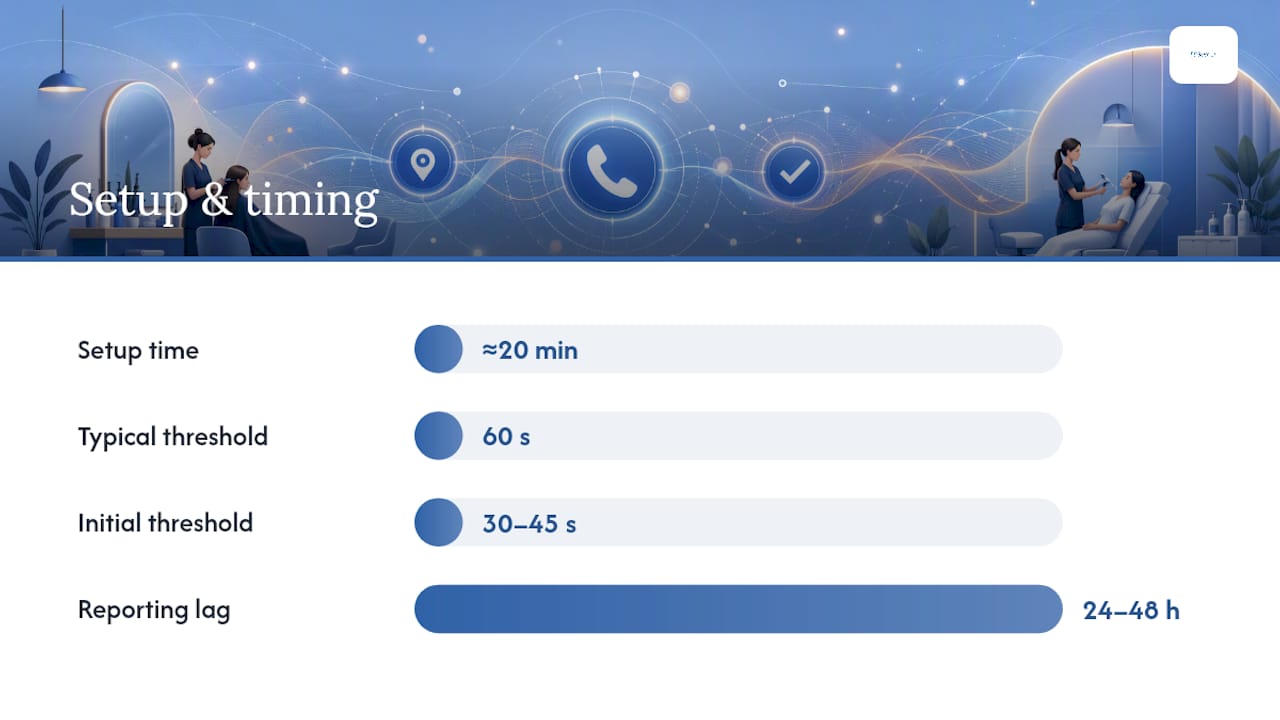
This is the fastest path to a usable call conversion, and most accounts can have it running within twenty minutes.
- In Google Ads, go to Tools & Settings → Measurement → Conversions, then click the blue + New conversion action button and select Phone calls.
- Choose Calls from ads as the source.
- Decide your qualification method: either a minimum call-length threshold (most accounts start at 60 seconds) or Google’s AI analysis of the recording, which flags calls that show genuine buying intent versus a wrong number or a hang-up.
- Set your conversion value, count setting (one or every), and attribution window, then save.
- Confirm call reporting is switched on at the account level under Settings → Account Settings → Call Reporting. Without it, Calls from ads conversions stop counting entirely, and that quietly starves Smart Bidding of the exact signal it needs to optimize.
- Check forwarding-number eligibility for your account’s country before you assume this will work out of the box.
- Run a test call from a call-only ad or call asset, then check the Calls segment inside campaign reporting to confirm it logged duration, timestamp, and conversion status.
Pro Tip: Set your call-length threshold lower than you think you need at first (try 30 to 45 seconds), then tighten it once you’ve listened to a sample of qualifying calls. Setting it too high out of the gate can starve Smart Bidding of data before it ever gets a chance to learn.
Give the setup a day before you judge it. Conversion counts on brand-new call actions tend to look sparse for the first 24 to 48 hours simply because of reporting lag, not because tracking failed.
How do you set up website call tracking with dynamic number insertion?
Website call tracking answers a different question than Calls from ads: which keyword, ad group, or landing page actually drove someone to pick up the phone after browsing your site.
- Create a new conversion action under Conversions, select Phone calls, then choose Calls to a phone number on your website.
- Generate the phone snippet, a short block of code Google Ads provides once the conversion action is saved.
- Install the Google tag alongside the phone snippet on every page where your business number appears, whether that’s a header, footer, or dedicated contact page. Both pieces need to load, not just one.
- Alternatively, implement the tag and snippet through Google Tag Manager, using a trigger that fires on all pages containing your phone number.
- Wait for propagation. Google notes it can take some time before the forwarding number starts appearing to live visitors.
- Test by loading your site in an incognito window from a fresh session (ideally after clicking through from an actual ad), then confirm the displayed number has changed to a forwarding number rather than your original one.
- Use Tag Assistant to verify the tag fires correctly, and check for an “Inactive” status flag in the Conversions column, which usually means the tag hasn’t received traffic yet or isn’t firing at all.
Pro Tip: If your site displays your number in more than one format (with or without spacing, country code, parentheses), the snippet can fail to match and replace it. Standardize the number’s exact formatting across every page before you install anything.
Common pitfalls worth planning around: multiple phone numbers on the same page confuse the snippet, aggressive page caching can serve a stale version of the site with your original number, and copy-pasted numbers with inconsistent formatting are the most common reason the swap silently fails.
Importing offline phone call conversions from your CRM
Imports exist for one reason: to tell Google Ads which calls actually became revenue, not just which calls happened. If your call-length threshold flags a 90-second call as a conversion but the caller never booked, your bidding algorithm is optimizing toward the wrong outcome. Importing corrects that by feeding in verified sales-qualified outcomes instead.
To import phone call conversions, your file needs, at minimum, the caller’s phone number and the exact call start time, formatted to match Google’s required date, time, and timezone conventions. A conversion value column is optional but strongly recommended if you want revenue-weighted bidding rather than a flat count.
- Confirm every record includes caller number and call start timestamp in the correct timezone format.
- Map CRM statuses (booked, sold, no-show) to a single, consistent conversion label before uploading.
- Schedule recurring imports through Google Sheets, an HTTPS feed, or SFTP rather than manual one-off uploads.
- Deduplicate records against previous imports; Google Ads doesn’t catch this for you.
- Treat every upload as final. Offline conversion imports are generally irreversible, so a formatting mistake or bad CRM export can skew bidding for weeks before anyone notices.
Run a small test batch of several records before your first full import. It’s the cheapest insurance against a mistake you can’t undo.
Choosing between global site tag and Google Tag Manager
Most accounts eventually face this decision: install the Google tag and phone snippet directly on the site, or manage everything through GTM.
Direct installation works fine for simple sites with one number and few pages. GTM earns its complexity on larger sites, especially ones where developers are slow to touch template code directly, because it lets marketers manage triggers without a deployment cycle.
Capturing the Google Click ID (GCLID) is the piece most setups get wrong. Without it, an imported conversion has no way to tie back to the ad session that generated the call. The standard approach stores GCLID in a cookie or hidden form field when a visitor lands from an ad, then passes it into the CRM record associated with that lead, so it can be matched during import later.
- Global site tag: simpler for small sites, harder to manage triggers or conditional logic.
- GTM: better for multi-number sites, easier trigger control, avoids double-firing tags on the same page load.
- GCLID capture: store in a cookie or hidden form field, then map it into your CRM’s lead record.
- Recommended GTM trigger: fire the phone snippet tag only once per page load, gated to pages that display a phone number, to prevent duplicate counting.
Test with Tag Assistant first, but also load the site on an actual phone. Desktop testing misses mobile-specific caching and rendering issues that quietly break DNI in production.
Why your call conversions might be undercounted (and how to fix it)
Most call tracking problems trace back to a short list of repeat offenders, and working through them in order usually resolves the issue faster than starting from scratch.
- Confirm call reporting is enabled and a forwarding number has actually been assigned in account settings, not just requested.
- Verify the Google tag and phone snippet are both present on the live page, using Tag Assistant, and check whether caching or a security header is blocking the snippet from loading.
- Look for an inactive tag status in the Conversions column; this typically signals the tag hasn’t fired recently or was never triggered correctly.
- Check for inconsistent phone number formatting, multiple numbers on one page, and missing or malformed GCLID values in CRM records.
- Reconcile Google Ads conversion counts against GA4 and your CRM export. Discrepancies as large as 40% between platforms usually point to broken tracking rather than a real drop in calls.
- Run manual test calls from a fresh session and confirm they show up with the correct duration and timestamp before trusting the setup.
Pro Tip: Broken tags and mismatched attribution windows are among the most common causes of undercounted conversions, and a routine tracking audit often uncovers meaningfully more true conversions than the dashboard was showing. If your numbers still look off after these six checks, book in a proper audit before you touch your bids.
Using call data to improve bidding, attribution, and reporting
Call conversions only help your campaigns if the data feeding Smart Bidding is trustworthy. Turn on “Include in Conversions” only for call actions that genuinely reflect valuable leads. Toggle it on for a call-length threshold that catches spam calls, and the algorithm will happily chase junk.
- Weight imported conversions by actual revenue where possible, rather than counting every call equally.
- Segment reporting by call details to spot which keywords or ad groups produce longer, higher-intent calls.
- Feed validated leads (calls that became bookings) back into the account through imports to sharpen future targeting.
- Escalate from simple call-length conversions to full CRM-imported conversions once you need lifetime value, not just lead volume.
Micro-conversions and revenue-weighted imports give Smart Bidding a sharper signal than raw call counts ever can, because the algorithm starts optimizing toward calls that actually close rather than calls that merely connect. A campaign chasing 50 low-value calls a week can look identical to one generating 10 high-value bookings, right up until you weight the data by what those calls were actually worth.
Landing page speed plays a quiet role here too. A slow mobile page bleeding clicks before the phone number even loads will suppress your call volume regardless of how well your tracking is configured, so treat page speed as part of the conversion equation, not a separate technical concern.
What eligibility and privacy rules apply to call reporting?
Call reporting and Google forwarding numbers are account-level features, and availability depends on your account’s country. Confirm eligibility before you build a tracking plan around it, because assuming it will just work everywhere is a common early mistake.
Where GDPR or similar regional privacy rules apply, disclose call recording and data collection clearly to callers, and follow Google’s EU user consent policy if your business serves users in the EU or EEA. If call recording isn’t available or permitted in your situation, fall back to call-duration thresholds or offline imports instead, since both avoid recording audio altogether.
Google may also request billing information or business verification documents before activating call reporting on newer or higher-spend accounts, so don’t leave this step until the week you planned to launch.
Practitioner checklist: what to audit before you trust your call data
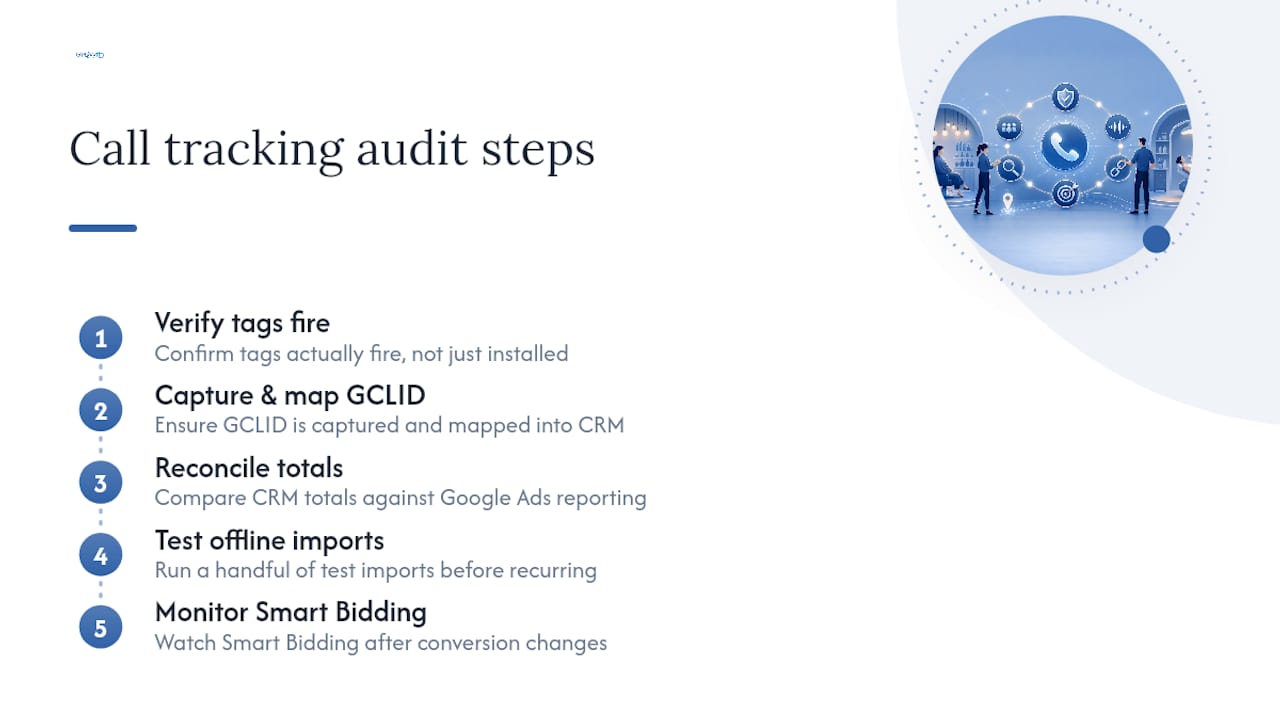
When Growth Reach Marketing reviews a new account’s call tracking, the audit follows a short, repeatable sequence: confirm every tag actually fires (not just that it’s installed), verify GCLID is captured and correctly mapped into the CRM, reconcile CRM totals against what Google Ads is reporting, run a handful of test imports before scheduling anything recurring, and finally watch how Smart Bidding behaves in the days after enabling or adjusting a call conversion action.
The recurring fixes are rarely glamorous. Tags firing in the wrong order on a page, phone numbers formatted three different ways across a single site, and caching rules serving a stale page without the forwarding number are the three issues we run into most often across salon, clinic, and local service accounts. None of them are hard to fix once found. All of them are invisible until someone actually goes looking, which is exactly why so many accounts run for months on data that quietly undercounts real leads.
Editorial take: what actually matters in call tracking
The conventional advice on call tracking treats it as a one-time setup task: turn it on, check the box, move on. That’s backwards. Call tracking is the one part of a Google Ads account that degrades silently. A tag can stop firing, a phone number can get reformatted by a well-meaning developer, and nothing in the dashboard screams for attention. Conversions just quietly drop, and most accounts don’t notice for weeks.
What gets underweighted is the sequencing question. Marketers often chase CRM imports first because “revenue accuracy” sounds like the sophisticated move. But if Calls from ads and website DNI were never validated properly, you’re importing precise revenue data on top of a foundation that was already leaking leads. Fix the plumbing before you chase the polish.
If there’s one thing worth prioritizing above everything else in this guide, it’s the GCLID capture step. It’s the least visible part of the setup and the most common point of failure, and it’s the one piece that makes every downstream import worthless if it’s missing.
— Gerard
Get your call tracking audited by Growth Reach Marketing
Setting this up correctly across tags, snippets, GCLID mapping, and CRM imports takes real technical patience, and most salon, clinic, and local service owners have better things to do with their week than debug a phone snippet. Growth Reach Marketing runs conversion-tracking audits specifically for phone-lead businesses: we check tag firing, verify DNI is working, map GCLID into your CRM correctly, and set up managed Google Ads optimized around the calls that actually turn into bookings.
Because we focus on salons, aesthetic clinics, and beauty brands rather than general e-commerce, we already know the common failure points, mismatched phone number formats, missed forwarding number eligibility, calls counted that were never real leads, before we even open your account. If your call conversions have looked flat or unreliable for a while, request an audit through our Google Ads campaign structure guide or reach out directly through our medical aesthetics Google Ads guide to get started with Gerard and the team.